DJI Modify – 3D Model Editing Software for Surveying & Inspection
Aerosmart Drones | All types drones

Aerosmart UAV Trading L.L.C. is a tech company that specialises in drones and solutions in the UAE and across the GCC.
Our Office

Office 203, Al Tayer Commercial Building,
Rolla Street, Bur Dubai, UAE

Follow Us

DJI MODIFY
Shaping the World
Modify is DJI’s first intelligent 3D model editing software, designed for simplicity, intuitiveness, and efficiency. It enables rapid point cloud smoothing, noise reduction, downsampling, and classification, with one-click adjustment of point cloud categories and automatic generation of terrain results. The software accurately identifies and repairs 3D mesh defects—such as floating objects, holes, and vehicles—with a single click, efficiently producing realistic textures. When integrated with DJI Enterprise drones and DJI Terra, Modify provides a comprehensive, one-stop solution.
DJI Terra and DJI Modify
Seamless Workflow [1]
Streamlined Interaction
Efficient 3D Point Cloud Repair
Efficient 3D Model Repair [2]
Cloud Sharing
Quick Delivery

DJI Terra and DJI Modify
Seamless Workflow

Modify is DJI’s first intelligent 3D mesh and point cloud editing software. It generates terrain results that can be easily imported into industry-standard software such as GIS and CAD. Paired with DJI Enterprise drones and DJI Terra, it delivers a comprehensive solution from aerial surveying and modeling to model editing and sharing, meeting the needs of surveying and mapping, firefighting, emergency response, and transportation.

Streamlined Interaction

Simple Operation
Efficient Workflow
Show Both High & Low Quality Models
Rich Point Cloud Display Modes

DJI Modify’s streamlined interface fosters a more intuitive interaction. Get started rapidly without investing extensive effort to get familiar with the software. Intuitive controls and practical, easy-to-use editing tools reduce manual effort, simplifying the model editing process.

Efficient 3D Point Cloud Repair

Smart Filter

Smart Filter is suitable for city and multi-building scenes, supporting the differentiation of ground, vegetation, buildings, wires, electric towers, vehicles, and dynamic objects. After the classification, tools such as Quick Selection and Structure Selection enable precise refinement, further improving point cloud classification accuracy.

Manual Classification

If there are misclassified ground points in the model, you can reassign their classification using tools such as Polygon Selection, Rectangular Selection, Brush Selection, or Single Selection. Additionally, by adjusting Tolerance, you can quickly select point clouds with the same or similar colors and update their classification with one click.

Point Cloud Processing

Supports noise reduction, downsampling, and smoothing for the entire point cloud or selected points. Noise reduction removes isolated noise points and improves overall point cloud quality. Downsampling can be performed by distance or percentage to flexibly adjust point cloud density. Smoothing eliminates discrete noise, making local structures clearer.

Terrain Result Generation

Supports the refined processing of classified ground point clouds to generate more accurate Digital Elevation Models (DEM), contours, grids of points, and Triangulated Irregular Networks (TIN), meeting the application requirements of surveying, mapping, planning, and other scenarios.

Efficient 3D Model Repair

Floating Parts Removal

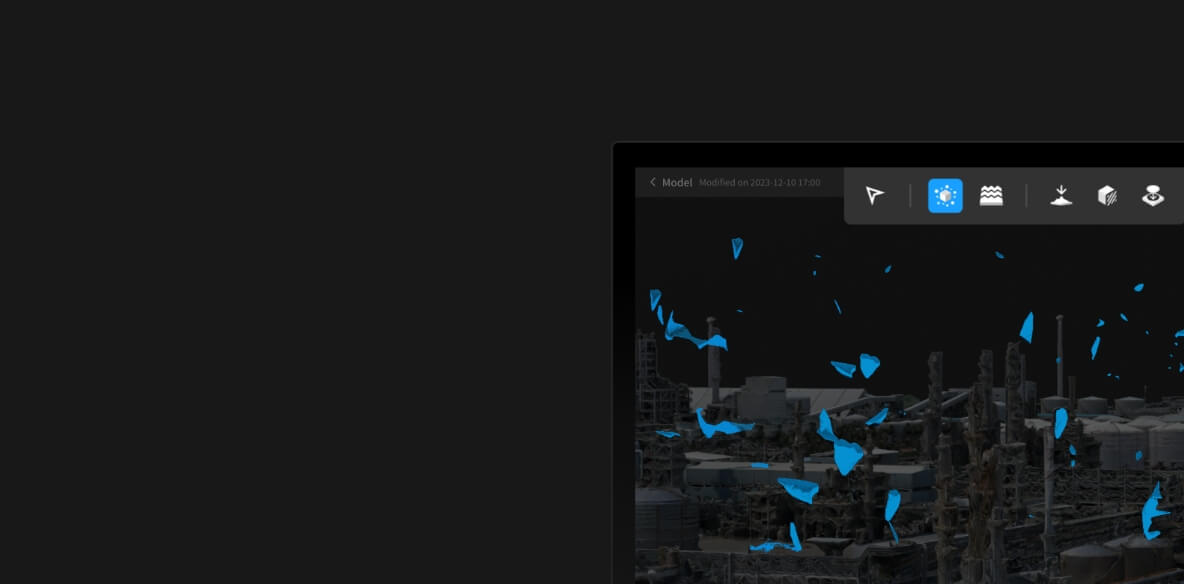
Supports box selection of multiple floating parts or single-point selection of individual ones. Once selected, you can easily remove them using the Remove button in the interface or the Delete/Backspace key on your keyboard, facilitating convenient, fast removal. You can also quickly preview the model after the removal.

Flattening

Supports selecting vehicles by mouse-framing a polygon, or by clicking the Vehicle button in the panel to identify and promptly select the vehicles in the current view. Click the Flatten button in the menu to flatten all vehicle meshes. DJI Modify then automatically smooths the textures in the flattened areas, ensuring the repair is seamless and aesthetically pleasing.

Texture Repair

Selecting Erase allows DJI Modify to match and repair a selected area with the surrounding patterns, delivering a fast and authentic texture repair. Choosing Clone means that after selecting a pattern within a specific area using the repair tool, you can drag it to the area needing repair. DJI Modify seamlessly blends the pattern edges with the surrounding region, providing a smoothly repaired effect.

Hole Fill

DJI Modify automatically identifies holes in the model, outlines their edges, and highlights them. You can quickly repair selected holes by using the mouse to click or frame the hole’s perimeter. You can also customize the hole range as needed. With one click, DJI Modify repairs the selected holes and automatically restores the hole textures, achieving excellent blending results.

Water Surface Repair

You can easily draw the water surface on the model by clicking, and flexibly adjust its range, height, shape, and position to better fit the model. While drawing the water surface, DJI Modify fills it with either texture patterns or a chosen custom color, optimizing the repair effect of water scenes.

Cloud Sharing, Quick Delivery

DJI Modify renders and exports models rapidly in many formats, such as ply, obj, and b3dm, which are compatible with DJI Terra and third-party software. Processed models can be quickly shared to the cloud, so others can view them online on the web or mobile via shared links without installing any software.

Modify License Plans

Feature/Version Standard Flagship
3D Mesh Editing
Point Cloud Editing
Terrain Result Generation
Cloud Sharing
Export Results
Bind Device 1 Device 1 Device
Authorization Mode Online Online
Validity Period Permanent Permanent
How to Buy Contact Us Buy Now

Request for a Quote

Your journey into the extraordinary begins here. Share your details for a personalized DJI Modify quote and let your imagination soar.

    ✅ Thank you for reaching out. Your message has been successfully sent, and our team will get in touch with you shortly.